Innowell care option resources
Find care options in Innowell and respond when a client requests clinician support.
Innowell care options sit within each health domain. Clients can open a card from Health Priorities or Latest Results to review their result, explore related care options, and request clinician support where needed. Care options are designed to support care planning, not replace the therapeutic conversation.
Where care options sit
Clients can find care options by opening a health card from their Health Priorities or Latest Results.
When a health card is opened, the client can review information about that health domain and explore care options related to that area.
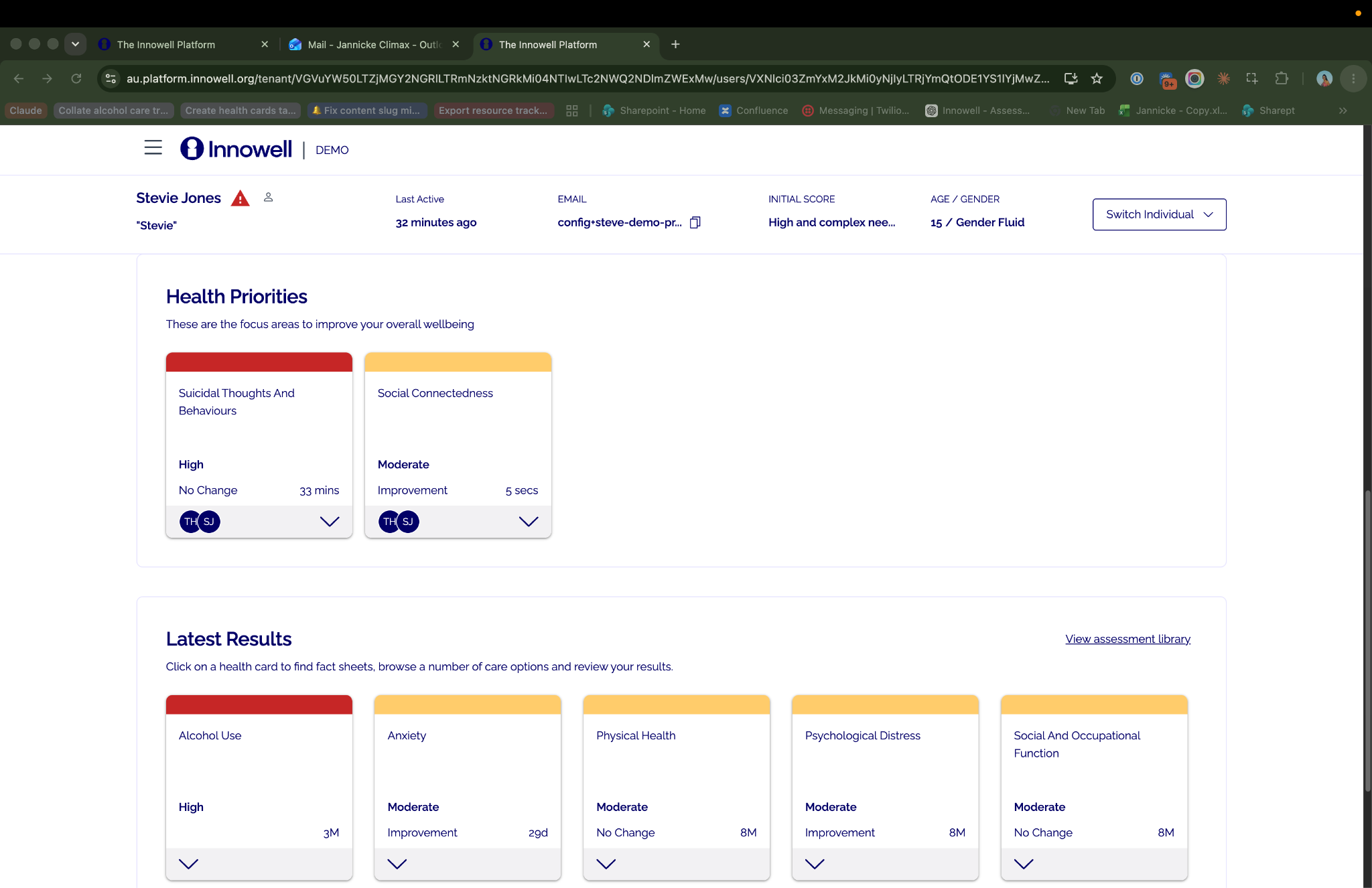
Care options are accessed by opening a health card from Health Priorities or Latest Results.
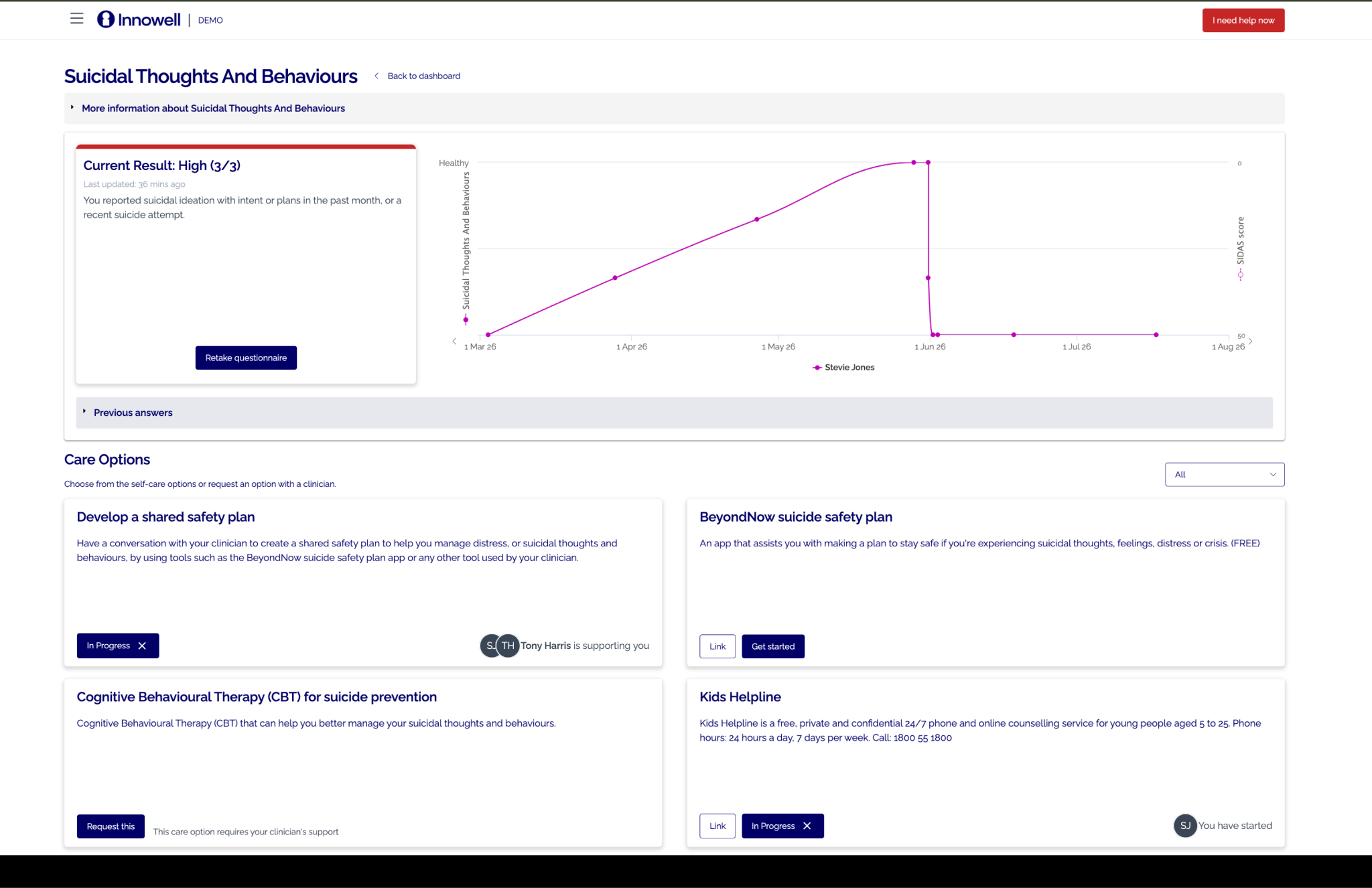
Each health domain includes related care options assessment results.
How clients access care options
Some care options can be accessed immediately by selecting Link. Others require clinician support, so the client can select Support to ask for help with that option.
When a client selects Support, the care option shows that support has been requested and the client can see that they are waiting for their clinician.
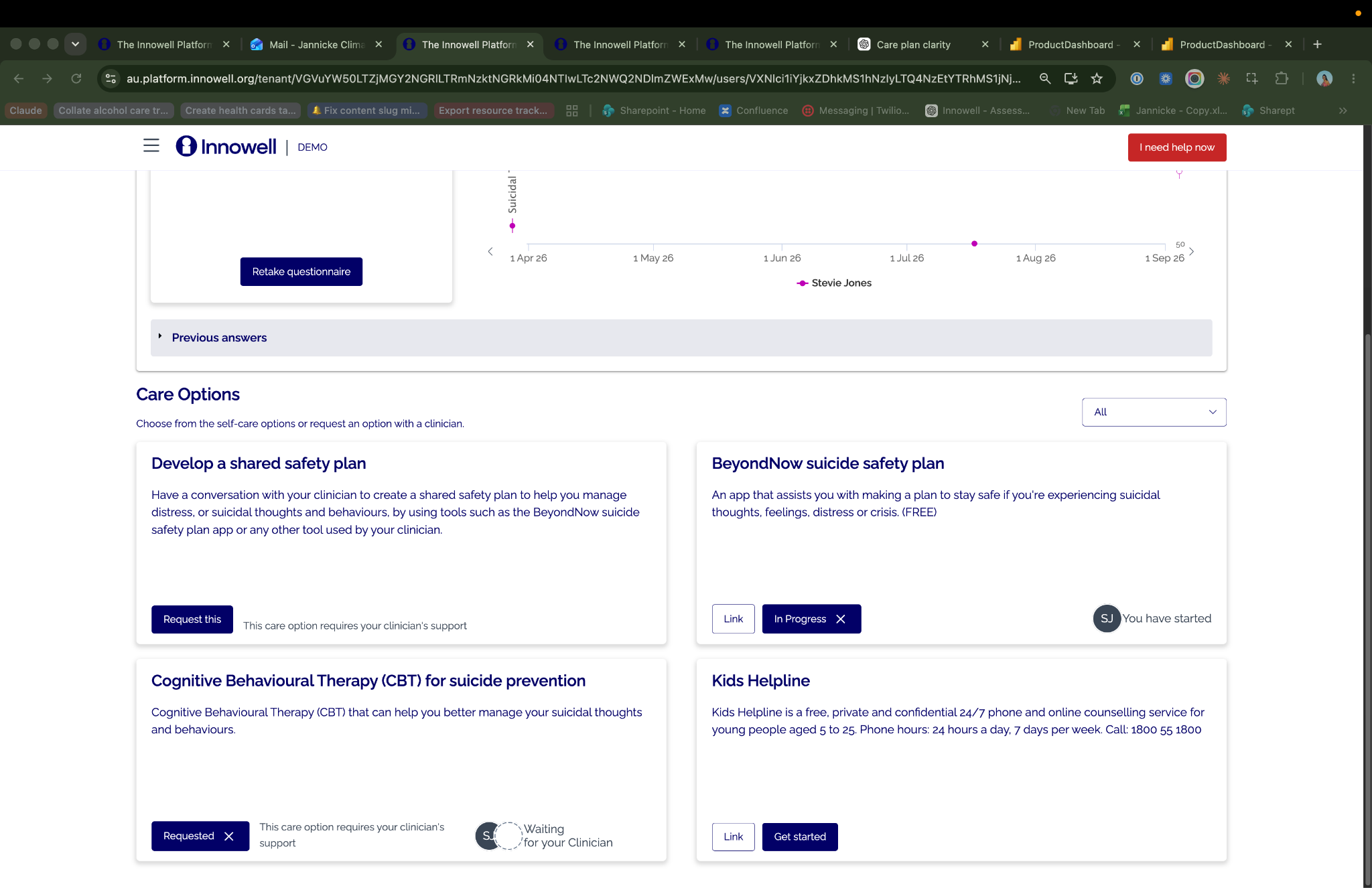
Each health domain includes related care options assessment results.
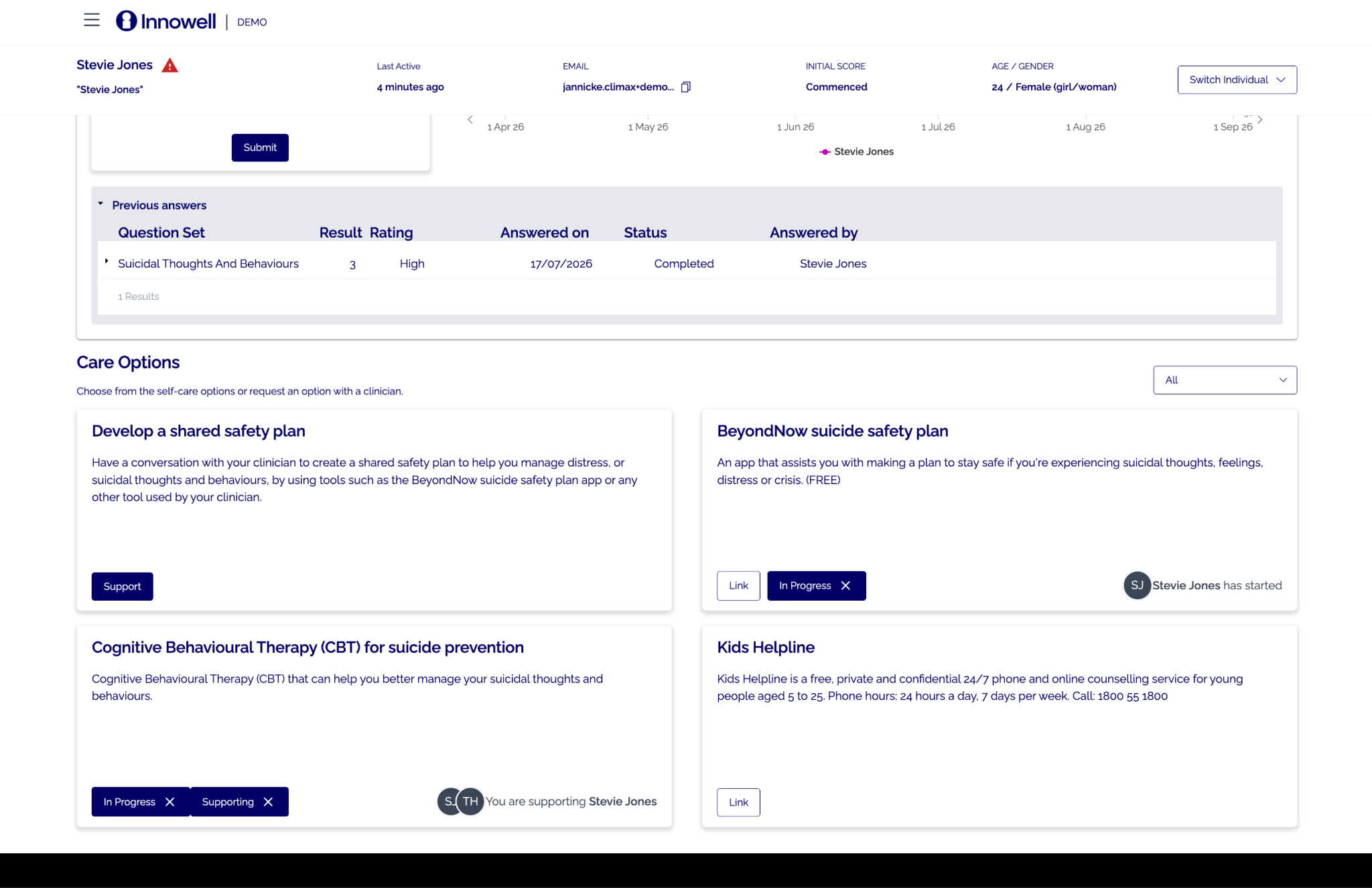
After requesting support, the client can see that the care option is waiting for their clinician.
Where the request appears for clinicians
When a client requests support with a care option, the request appears in the clinician’s Recent activity panel.
This helps make the client’s interest in a care option visible alongside other recent activity in Innowell.
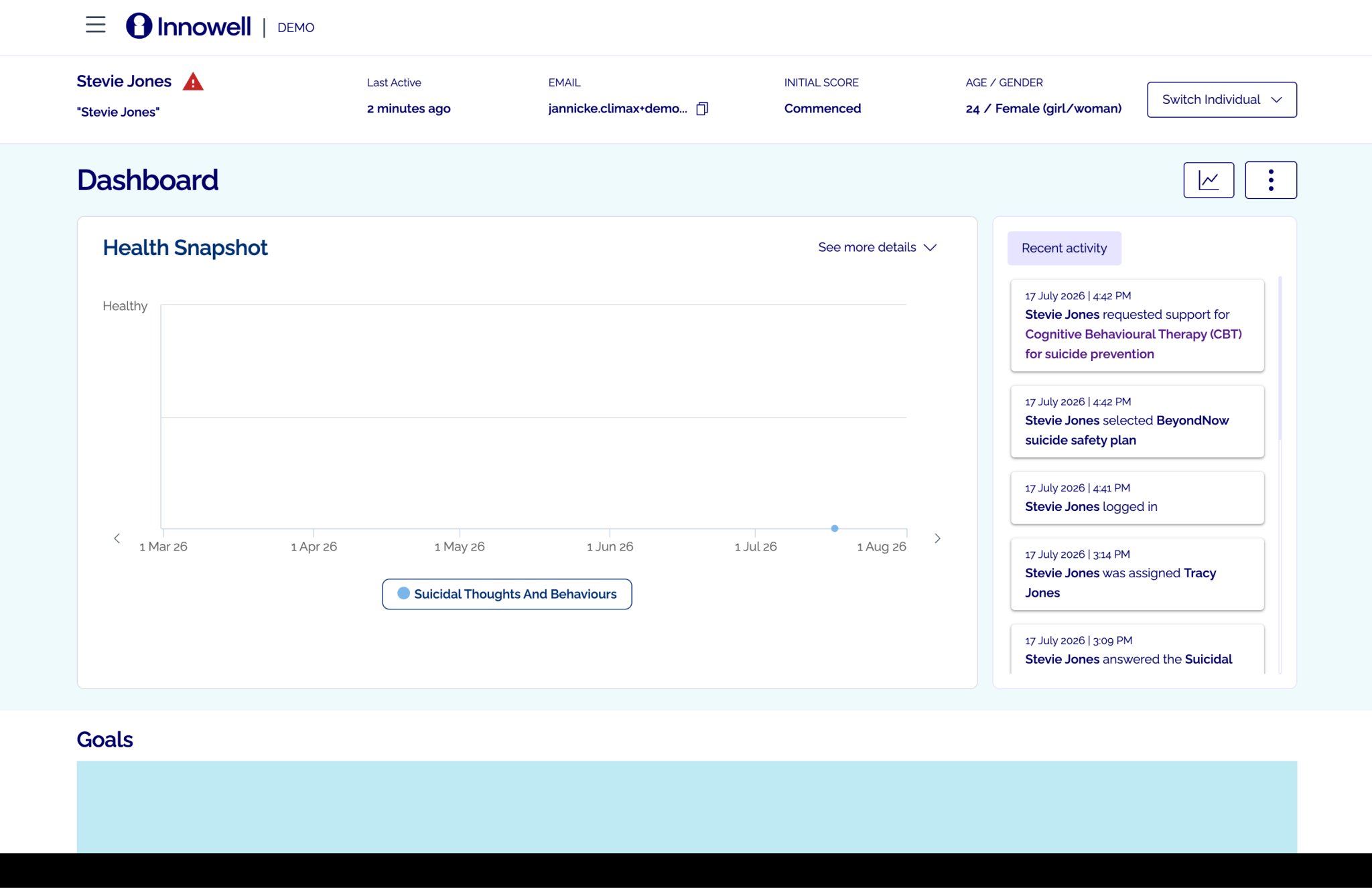
Recent activity shows when a client has requested support with a care option.
The requested care option viewed from the clinician side.
How care options support care planning
A request for support does not mean the care option has already been added to the care plan. It shows that the client is interested in that option and has asked for clinician support.
This can help make care planning conversations more focused by showing:
- Which option the client was interested in.
- Which health domain the option relates to.
- Whether the option needs clinician involvement.
- Where the option may fit within the client’s broader care plan.
Care options help connect the client’s Innowell results, priorities, and preferences with practical next steps.