Before a session: reviewing client profile
Read a client's profile to get the full picture
Opening the client’s profile before the session means you walk in already knowing what’s changed and where to focus.
Open the client’s profile
From the Individuals tab, select the client’s name to open their dashboard.
Read the Health Snapshot
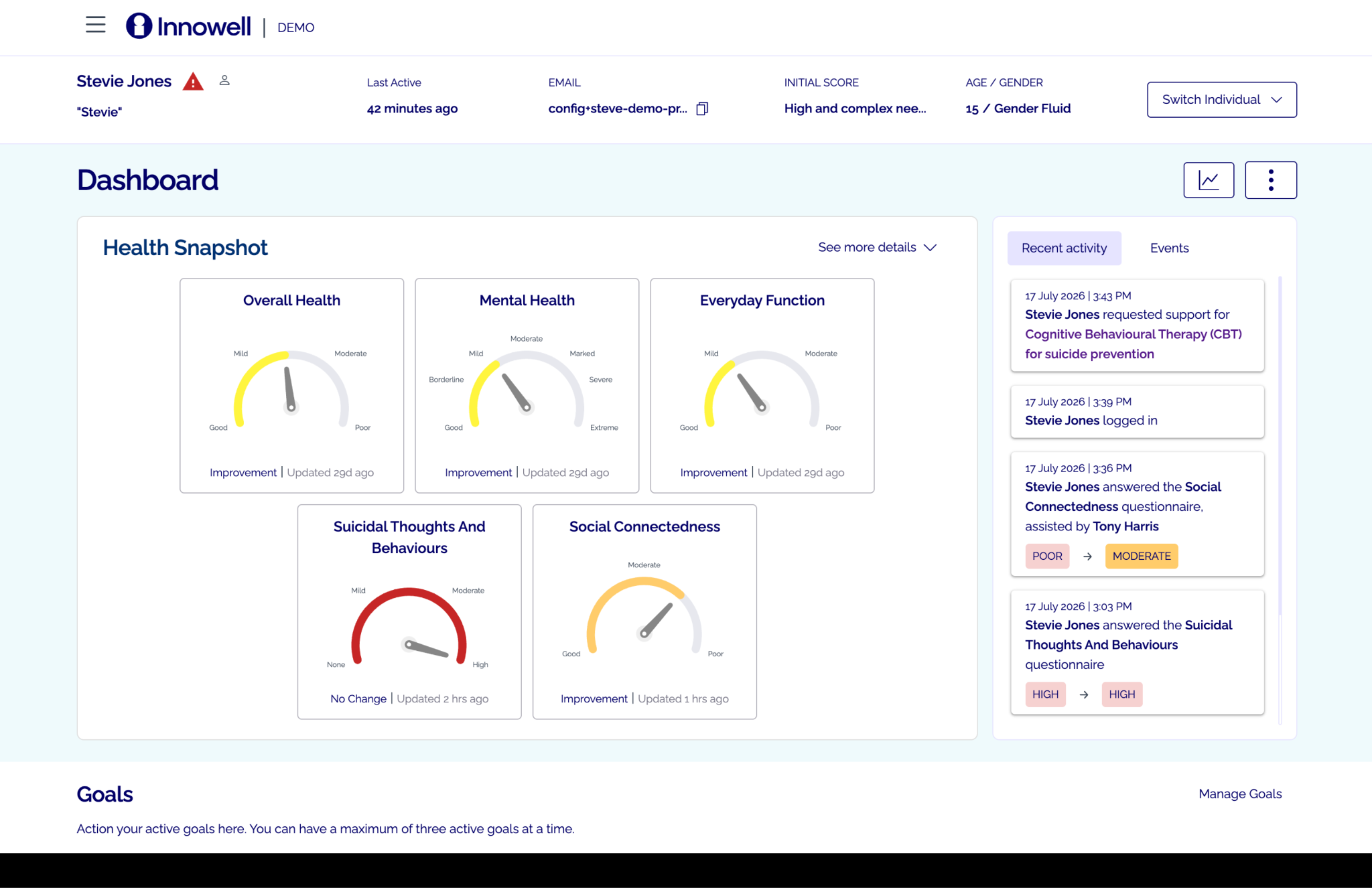
The Health Snapshot is the client’s headline picture across five core domains — the Fast Five:
- Overall Health
- Mental Health
- Everyday Function
- Suicidal Thoughts and Behaviours
- Social Connectedness
Each domain is rated on a scale moving from needs support to doing well, so at a glance you can see which areas are tracking well and which may need attention.
Behind each domain is a validated clinical instrument — the rating you see is calculated from the client’s responses to that measure, not a generic score. Which instrument drives each domain depends on how your service is configured, so a domain may be measured slightly differently between services. To check the instruments your organisation uses, check with your Champion or Partner Success Manager.
Reading the Snapshot before a session means you and the client share the same view of the journey, so your time together can start from what’s changed.
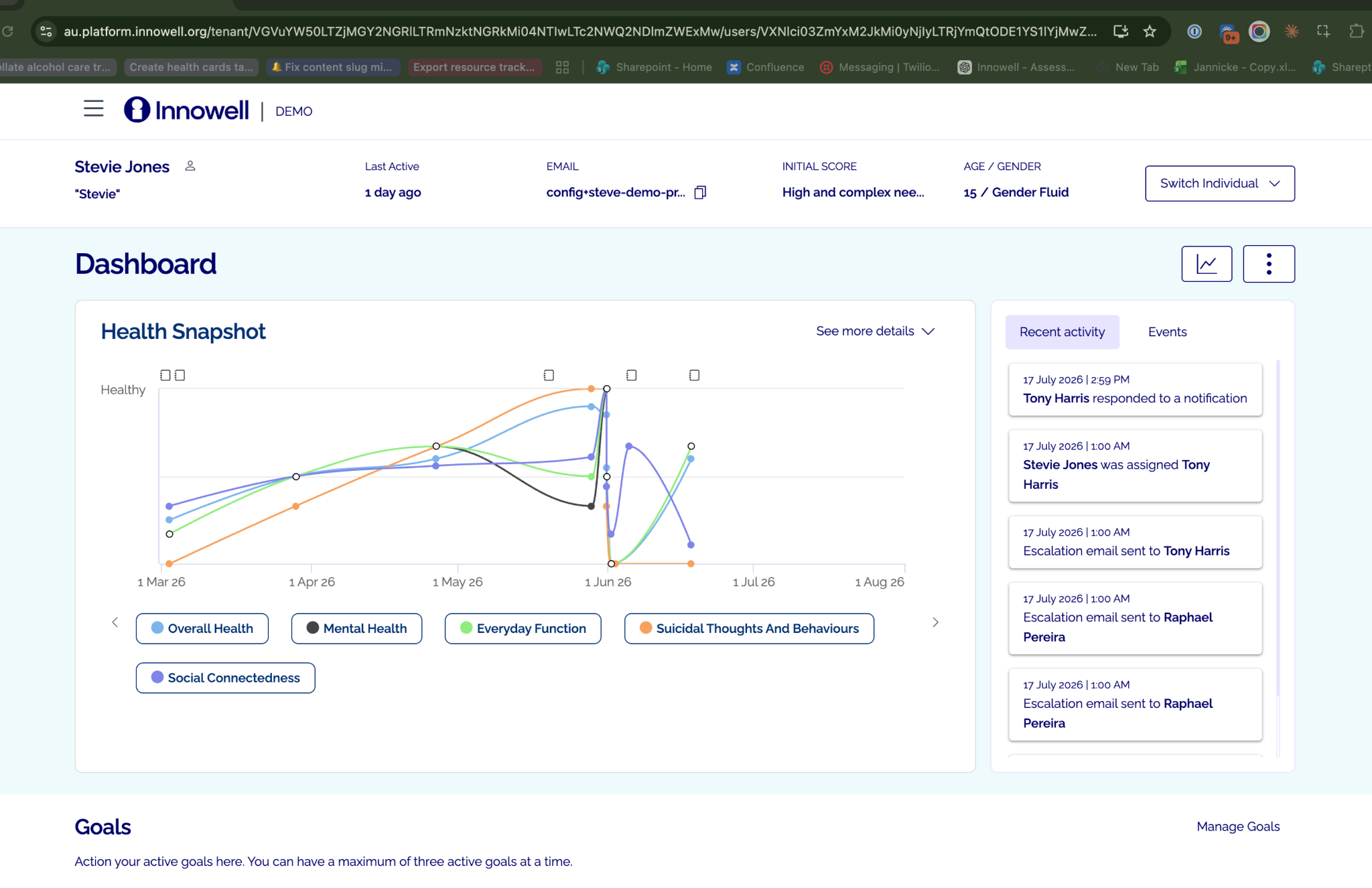
Seeing the Snapshot before a session means you and the client share the same view of the journey, so your time together starts from what’s changed.
Dials and the graph
The Health Snapshot has two views, and what’s available depends on how many times the client has completed an assessment:
- Fewer than two times: the Snapshot shows dials, a gauge for each domain with a needle and a trend.
- Two or more times: the graph view becomes available, plotting each domain over time.
Switch between them from Display Dials in the three-dots menu (or the graph icon above the Snapshot).
The graph view appears once there are two or more assessment timepoints, making change over time easy to notice. Before that, dials show the current picture.
See what’s new since you last met
- Fresh assessment results feeding their Snapshot.
- Any requests for assistance they’ve raised.
- Health priorities they’ve updated.
- Goals they’ve set or progressed.
Review the cards lower on the profile
- Health Priorities: selected by the client, each with a rating, trend and the people involved.
- Care options: each priority and ‘health card’ offers care options the client can filter by Self Care or Work with Clinician. Each option shows its status and who’s involved.
- Latest Results (health cards): colour-coded cards across the assessment domains. Selecting a card opens fact sheets, care options and detailed results.
See the full profile
For the full picture, use the three-dots menu and choose View profile, which shows the demographic details the client entered during onboarding.
The client owns this information and can update it any time from Profile settings on desktop or within Account Settings on mobile app.