How to invite clinicians and manage staff
How to invite clinicians and manage staff
Managers can invite both clinicians and clients, assign clients to clinicians, manage staff roles, and access Insights and the STB notification list.
Invite a clinician
Open the Employees tab and select Invite Employee, then enter the person’s details, choose their role, and send. The invitation arrives by email for them to activate.
Manage existing staff
The Employees tab is also where you keep access current. Each row shows the person’s name, email, and role. Using the three-dots menu on a row, you can:
- Resend an invitation if someone hasn’t activated their account yet.
- Remove access when a staff member leaves or no longer needs it.
Use the Active filter to switch between active staff and those still waiting to activate under Invited, so you can quickly see who may need a nudge.
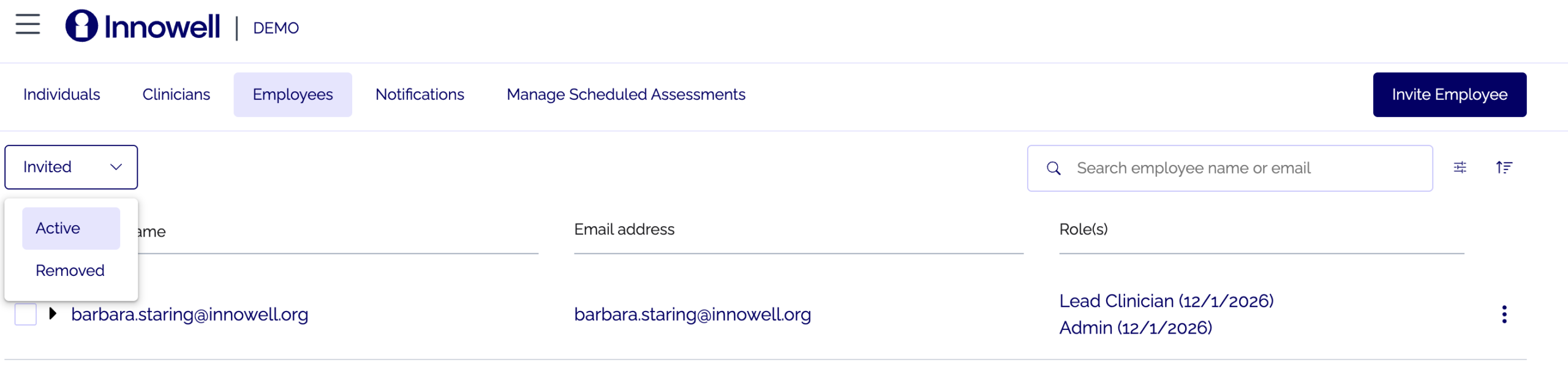
Manage your team from the Employees tab: invite, resend, remove, and check who’s still to activate.
Invite and assign clients
Invite clients with Invite Individual on the Individuals tab, the same way other roles do. As a Manager you can also assign a client to a clinician from the client’s row or profile.
What you see in Notifications
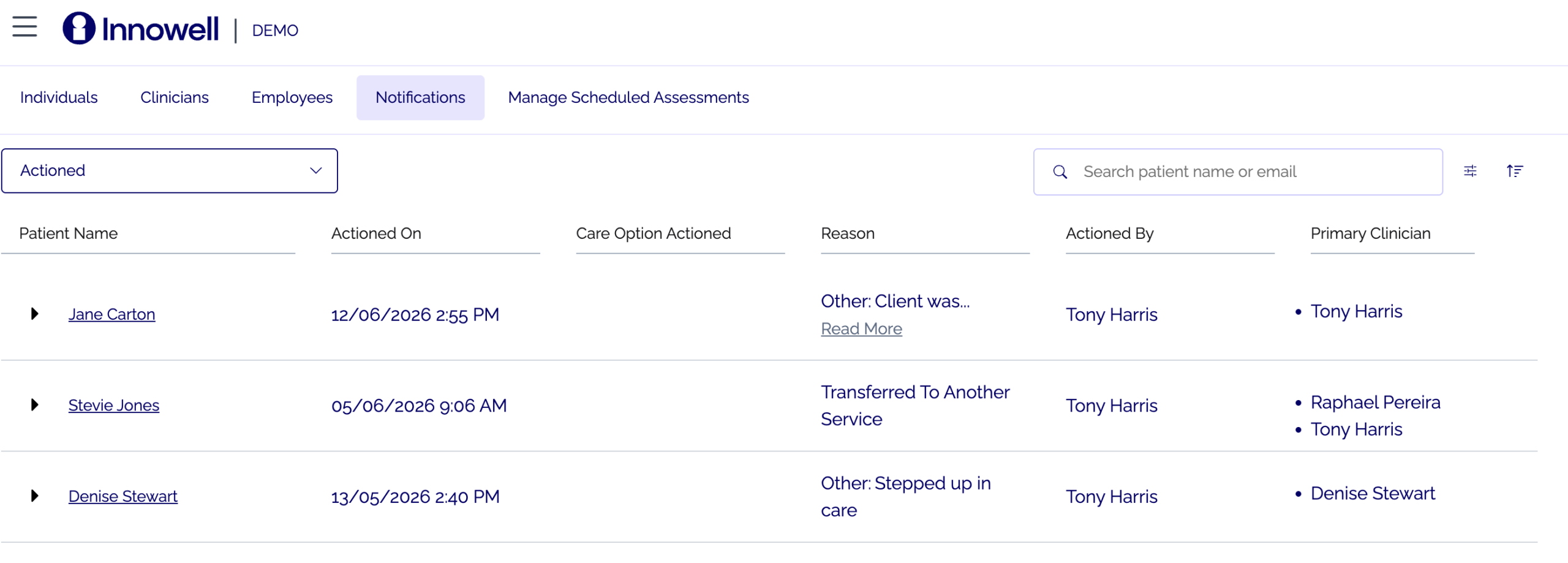
The Notifications tab gives you a service-level view of STB (Suicidal Thoughts and Behaviours) notifications. For each one you can see who triggered it, when it was recorded, the primary clinician (where one is assigned), and whether it has been actioned.
This view supports oversight: it helps you and your team confirm that responses are happening and being recorded. It is not the place where individual risk response begins.
As a Manager you see the Notifications list, but not the row-level STB or “I need help” icons that clinicians and lead clinicians see on the Individuals list. Front-line response sits with the clinical team; your view supports follow-up and accountability.
You also have access to Insights, which gives you service-level views of usage and outcomes. See the related articles below for how to read each.