A day in the life of using Innowell
NoteThis is your map of how Innowell fits into a normal working day. Each step below links to a detailed how-to.
Shared insight, focused care
With Innowell, you and your client share a clear, up-to-date picture of their journey, allowing your time together to focus on what matters most.
Meeting a new client
When meeting a new client, it is good practice to introduce Innowell as part of the session and support them to get set up. This may include sending the invitation, helping them register, and completing their first assessment together in the room.
Your admin team may have already invited the client, meaning they may already have an invitation waiting in their inbox. Introducing Innowell face to face can help build the client's confidence in using the platform and gives you an opportunity to explain how it will support their care.
Completing the first assessment together helps you and the client begin with a shared picture of what is happening for them. It also gives you information you can use to guide the conversation and identify what matters most.
You may also want to discuss scheduling upcoming assessments in line with their future sessions. This helps ensure you have fresh assessment insights available before you meet, so your sessions can be guided by the most current picture of how the client is tracking.
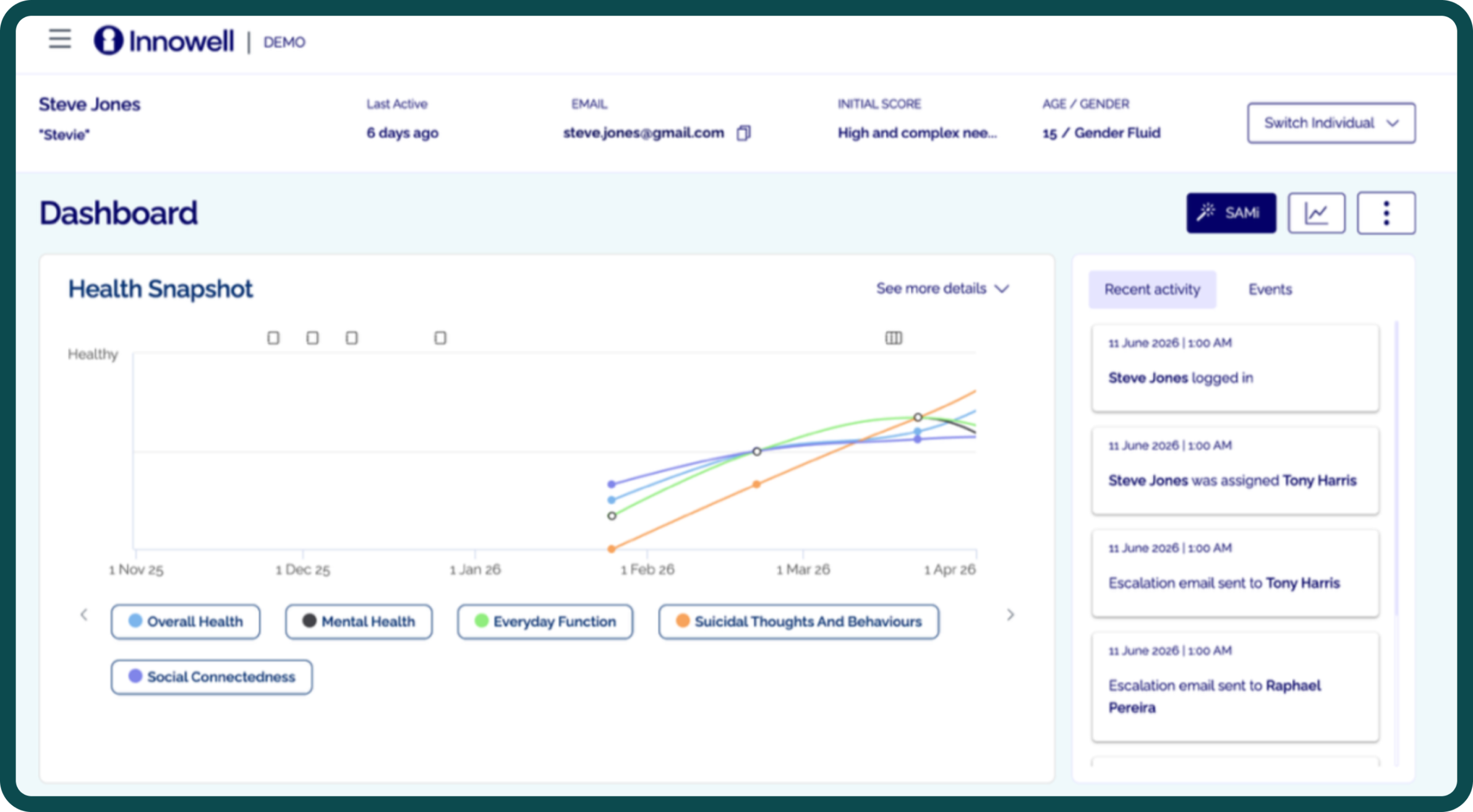
Once the client has completed two assessments, Innowell will begin building their Health Snapshot, giving you both visibility of their progress over time.
Start of the day
Log in and prioritise who needs your attention first.
NoteUse the Individuals list with the "Assigned to me" filter as your daily starting point.
- Log in and open the Individuals tab.
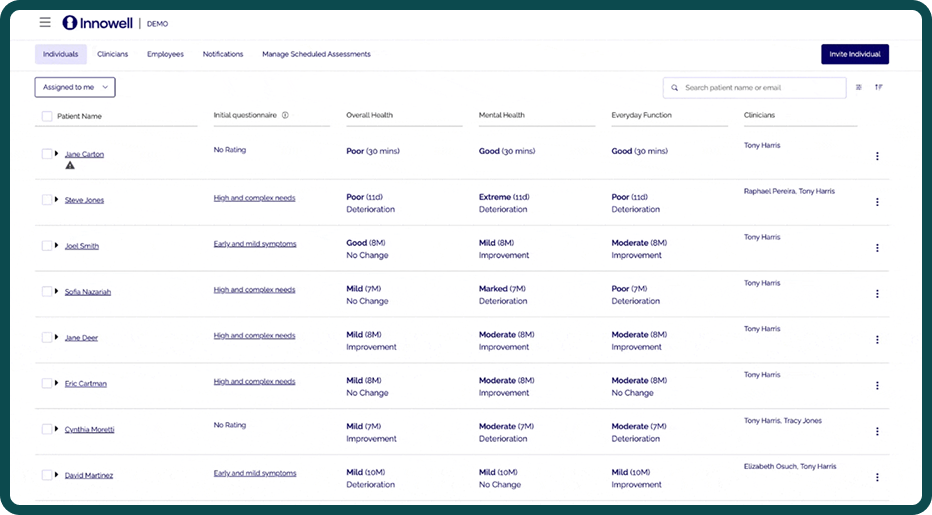
- Filter to Assigned to me and look for new submissions, changing trends, and the Suicidal Thoughts and Behaviours (STB) flag.
- Check for any STB (these also arrive by email) or 'I need help' flags.
<<Individual tab>> with STB notification & 'I need help' alert list of clients
| Role | Invite | Assign | Discharge / Remove | Notifications | Insights | Client data |
|---|---|---|---|---|---|---|
| Clinician | No (assigned) | No | No | Own clients | Yes | Yes (own) |
| Admin | Yes | No | Yes | No | No | No |
| Lead Clinician | Yes | Yes | Yes | Everyone | Yes | Yes (all) |
| Manager | Yes (staff + clients) | Yes | Yes | List only | Yes | Per config |
Before a session
Open the client's profile and read their story so far.
- Review the Health Snapshot (their Fast Five over time).
- Check new assessments, requests for assistance, updated priorities and goals.
During a session
Use the shared information to open the session with what matters to the client, and support them to complete or schedule summary assessments.
Capture context as an event, schedule what comes next, and discharge if care has ended.
Gif example with description
Description text goes here adipere alma est.