Safety signals in Innowell
How to recognise and respond to STB notifications and "I need help" alerts in line with your service's protocols
Innowell uses different risk signals to help your team identify when a client may need timely review.
A Suicidal Thoughts and Behaviours (STB) notification is triggered by assessment responses. An “I need help” alert is triggered when a client actively presses “I need help now” in the platform.
Both signals should be reviewed in line with your service’s risk response process. Innowell helps bring these signals to light, while your service’s clinical protocols guide what happens next.
What a Suicidal Thoughts and Behaviours (STB) notification is
An STB (Suicidal Thoughts and Behaviours) notification is how Innowell highlights, tracks, and escalates client responses that may need timely attention — helping your team see them sooner and respond in line with your service’s clinical protocols.
When a client’s responses suggest they may benefit from additional support, the platform presents national health access lines offering 24/7 assistance, tailored to your account during setup. Innowell brings these responses to light, while your service’s clinical protocols guide next steps.
As always, follow your service’s escalation procedures for who to contact, the steps to take, and expected response timeframes.
The red triangle on a client’s row is the STB flag; the same event also appears in the Notifications list and escalation email as an STB notification.
The two icons in the Individuals list
- Red triangle (): an active STB flag from a client’s assessment responses.
- Megaphone (): the client has pressed “I need help now”. It appears beside their name for clinicians and lead clinicians and stays visible for 48 hours.
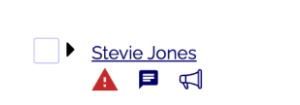
Knowing which icon means what helps the team respond appropriately and promptly, supporting safer follow-up.
Where an STB notification appears, by role
Where you see an STB notification depends on your role:
- Clinician: the red triangle and megaphone icons beside your own clients’ names.
- Lead Clinician: the same icons and the full notification list for everyone who triggers an STB flag across the team.
- Manager: the STB notification list, showing who triggered a notification, when, and its actioned status.
- Admin: Admins don’t see STB flags, the “I need help” icon, or Notifications tab.
Other places a notification surfaces include the escalation email, the Health Snapshot (the Suicidal Thoughts and Behaviours line), the Notifications tab audit trail, and the Recent Activity feed.
When a client isn’t yet assigned to a clinician
STB flags are generated for all clients, including those not yet matched with a clinician. However, unassigned clients will not appear in any individual clinician’s notification list.
Who can see these notifications:
- Lead clinicians can view STB notifications across all clients on their team
- Managers can view all notifications in the notification list, including whether each has been actioned
Where configured, the STB escalation email is also sent to your service’s designated address.
For services with clients waiting to be assigned to clinicians (active hold), these notifications help surface potential risk alongside the other information your team uses to review and follow up with clients.
Responding to a flag
When an STB flag appears, consider timely follow-up rather than waiting until the next session. Approaches may include:
- Connecting with the client when appropriate, guided by your service’s clinical protocols.
- Reviewing the client’s profile, including the Suicidal Thoughts and Behaviours health card, to understand the result, when it was reported, and what the client shared.
- Providing support as needed, and considering relevant care options (for example, a shared safety plan).
- Documenting your actions, so there is a clear and shared record for the care team.
- Exploring next steps if additional support may be beneficial, including transfer options within the client’s profile, in line with your organisation’s approach.
Your organisation’s clinical protocols provide the framework for how to interpret and respond in each situation. An STB notification is one signal among many; it supports clinical judgment rather than replacing it.
Actioning and clearing the notification
An STB flag remains visible until it is actioned in Innowell. This helps the team see which notifications are still open and need review.
- Click the red triangle beside the client’s name to open the notification detail.
- In the Action taken panel, select the option that best describes your response (for example, unable to contact, referred to another service, or ‘other’ and add a comment).
- Save. This records what was done and clears the open notification.
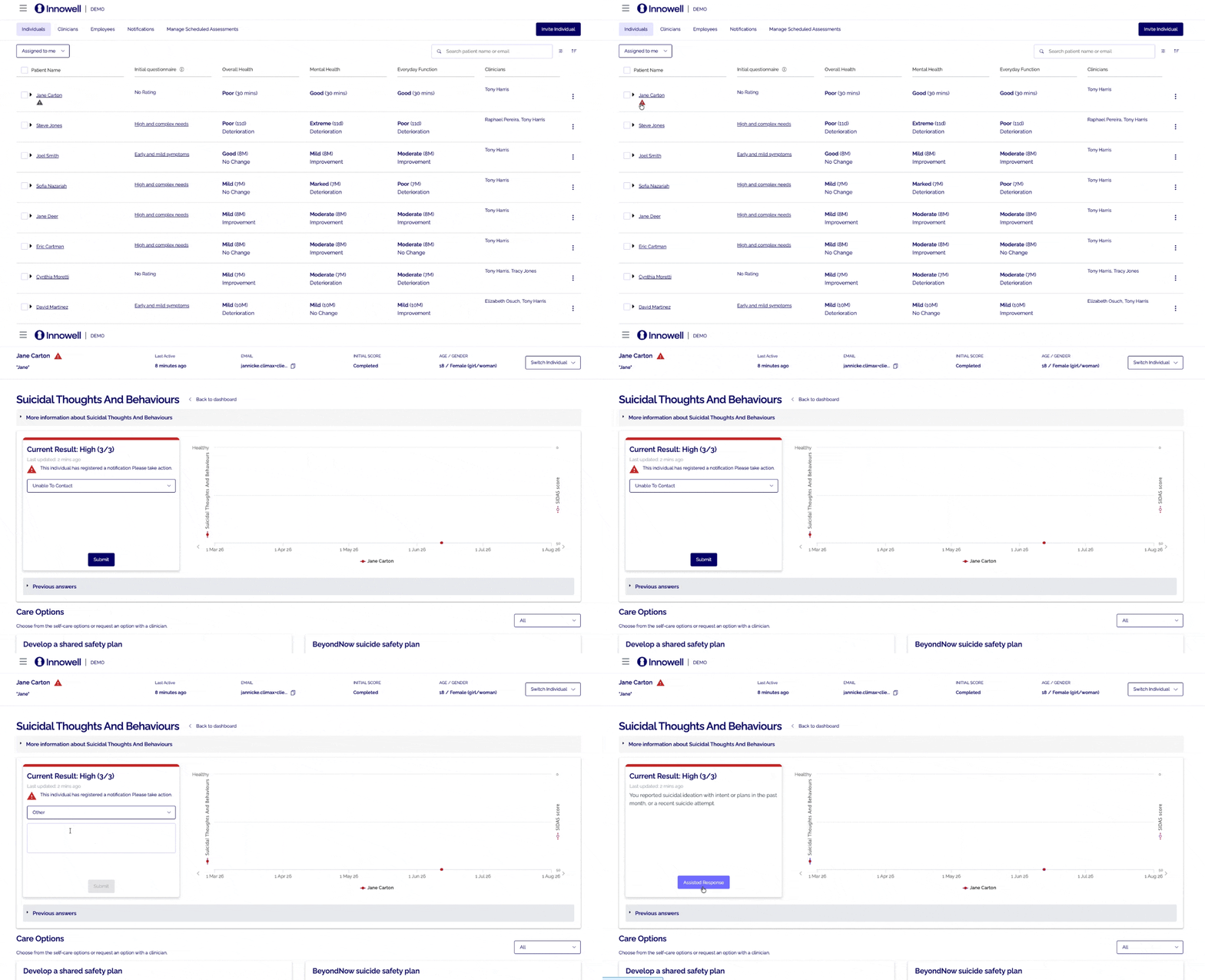
Actioning a notification: click the triangle, choose the action taken, Submit.
Risk notification visibility at a glance
| Role | Row icons ( | Notification list (STB only) | Scope |
|---|---|---|---|
| Clinician | Yes | Yes | Own clients only |
| Lead Clinician | Yes | Yes | All instances |
| Manager | No | Yes (trigger time + actioned status only) | Service-wide |
| Admin | No | No | None |